Display settings
The images displayed on this system may differ from actual ones.
Move to display settings screen
On the home screen, press [Setup] > [Display].
The display settings screen is displayed.
|
|
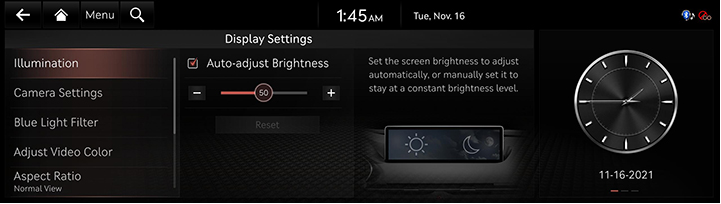
Illumination
Sets the screen brightness to adjust automatically, or manually set it to stay at a constant brightness level.
- On the display settings screen, press [Illumination].
|
|
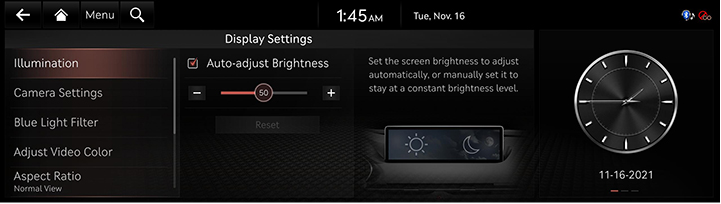
- Select a desired item.
|
,Note |
|
Visibility may decrease if the user adjusts the screen brightness to dark in a bright environment. |
Camera settings
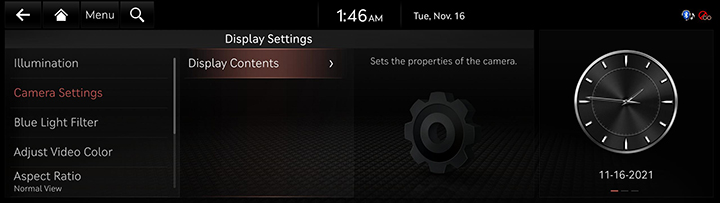
Sets the properties of the camera.
On the display settings screen, press [Camera Settings].
|
|
Blue light filter
Sets blue light settings, such as warmth/coolness and time of use.
- On the display settings screen, press [Blue Light Filter].
|
|
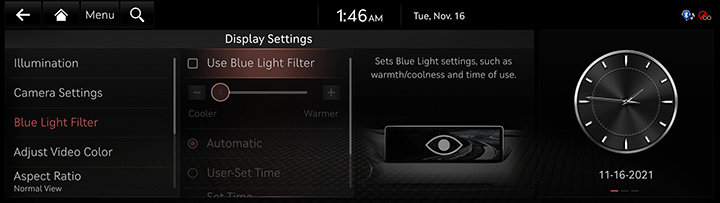
- Press the desired item.
- [Use Blue Light Filter]: Activates the blue light filter.
- [Automatic]: Activates the blue light filter according to surrounding brightness.
- [User-Set Time]: Activates the blue light filter according to the time set by the user.
- [Set Time]: Sets the blue light filter time.
Adjust video color
During video playing, you can set brightness/contrast/saturation.
- During video playing, press [Adjust Video Color].
|
|
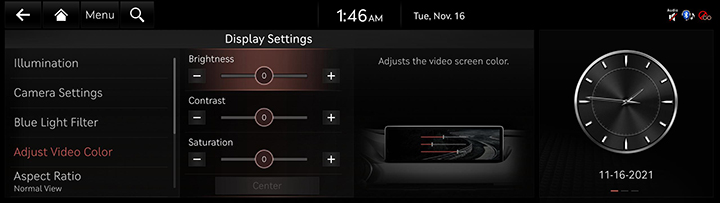
- Adjust the desired items.
|
,Note |
|
Press [Center] to reset the settings. |
Aspect ratio
You can select the desired size video screen to enjoy video with sense of realism.
- During video playing, press [Aspect Ratio].
|
|
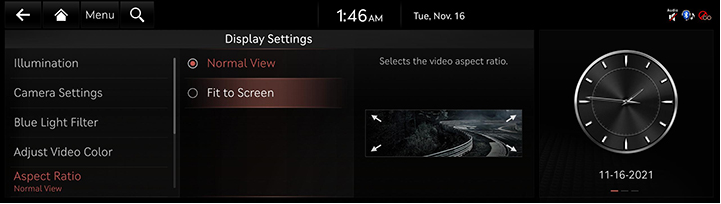
- Select a desired item.
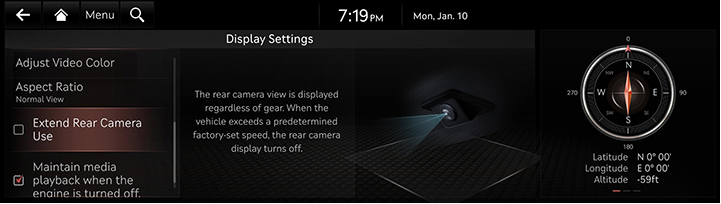
Extend rear camera use
The rear camera view is displayed regardless of gear.
|
|
|
,Note |
|
This option applies to RVM vehicles only. |
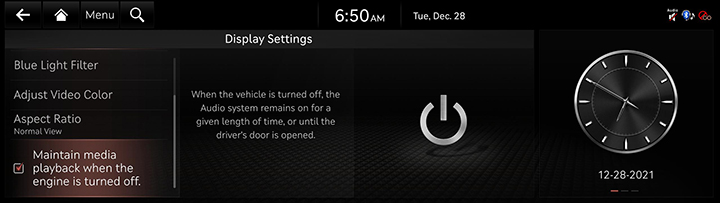
Maintain media play back when the engine is turned off.
When the vehicle is turned off, the Audio system remains on for a given length of time, or until the driver's door is opened.
|
|