Sound settings
The images displayed on this system may differ from actual ones.
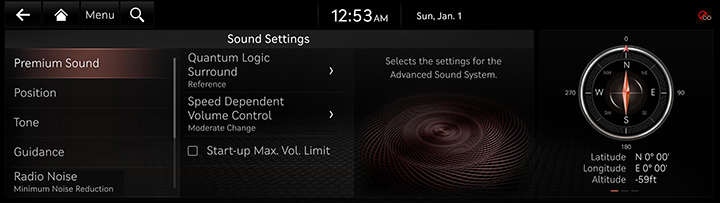
Move to sound settings screen
On the home screen, press [Setup] > [Sound].
The sound settings screen is displayed.
|
|
Adjusting the sound effect (if equipped)
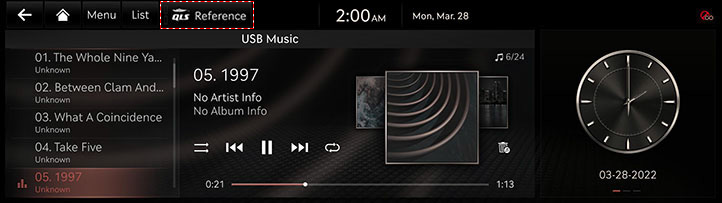
Press the sound effect button on the media/broadcasting screen to adjust.
|
|
|
,Note |
|
Description of sound effect modes by the specification.
QuantumLogic Surround (If equipped)
Delivers various sound effects by classifying the location of each instrument in the recorded sound source.
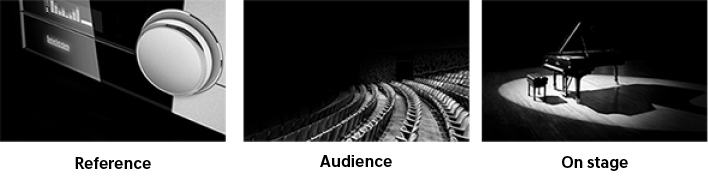
- [Reference]: Delivers true sound focusing on original sound source.
- [Audience]: Delivers an intimate concert experience where the boundaries of the vehicle seemingly disappear which feels like you are in the audience at a concert.
- [On Stage]: Delivers a surround-sound experience that puts listeners onstage with their favorite artists, placing individual instruments and musical elements throughout the cabin.
|
|
Live Dynamic (If equipped)
By reconstructing the dynamic information of compressed digital audio, it provides various sound effects. It provides three sound effects modes by reconstructing the separated sound signal according to the amount of dynamic change.
- [Reference]: Delivers true sound focusing on original sound source.
- [Natural]: Delivers natural sound through stereo reconstruction of separated sound signal.
- [Concert]: Delivers a sense of space like a concert scene through multi-channel reconstruction.
Premium sound
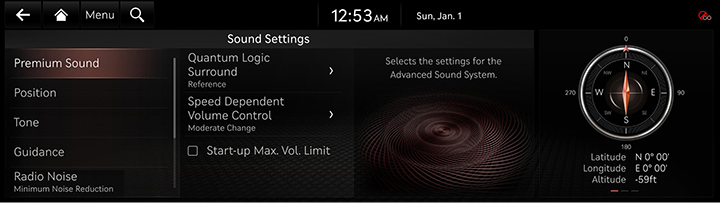
Sets the premium sound.
- On the sound settings screen, press [Premium Sound].
|
|
- Press the desired item.
- [Quantum Logic Surround]: Sets the quantum logic surround mode.
- [Speed Dependent Volume Control]: It automatically adjusts volume according to vehicle speed.
- [Start-up Max. Vol. Limit]: When starting vehicle engine, if audio volume is big, it decreases to adequate volume.
Position
Adjusts the desired seat position.
- On the sound settings screen, press [Position].
|
|
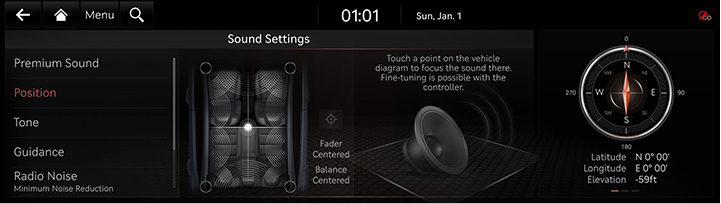
- Press the desired seat position.
|
,Note |
|
Press [j] to reset the settings. |
Tone
- On the sound settings screen, press [Tone].
|
|
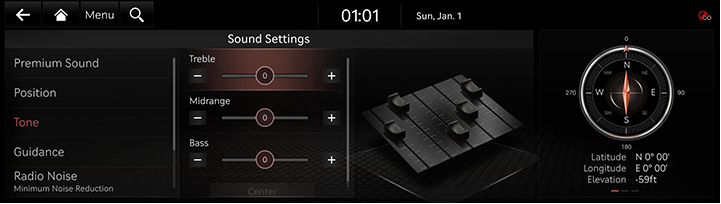
- Adjust the desired items.
|
,Note |
|
Press [Center] to reset the settings. |
Guidance
- On the sound settings screen, press [Guidance].
|
|
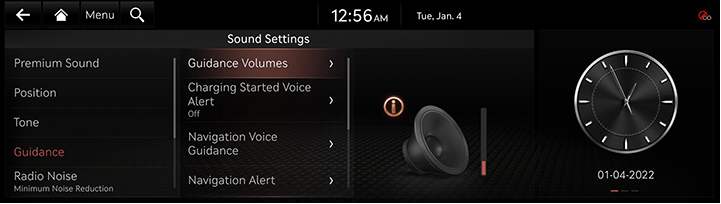
- Select a desired item.
- [Guidance Volumes]: Sets the guide volume.
- [Charging Started Voice Alert]: Provides a voice notification when the vehicle charging starts.
- [Navigation Voice Guidance]: Mutes voice navigation upon approaching the destination area, if location has been previously registered as one of the 'Saved Places'.
- [Navigation Alert]: Sets the camera alert settings.
- [Navigation During Calls]: Plays audio navigation guidance during phone calls.
- [Navigation Volume Priority]: Lowers all other audio volumes when navigation prompts are playing.
- [Mute Navigation Guidance]: While navigation guidance is playing, pressing the mute button on the steering wheel will mute guidance for 10 seconds.
Radio noise
Sets the radio noise.
- On the sound settings screen, press [Radio Noise].
|
|
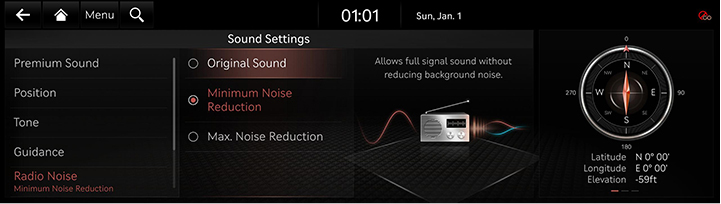
- Select a desired item.
Driver Assistance
- On the sound settings screen, press [Driver Assistance].
|
|
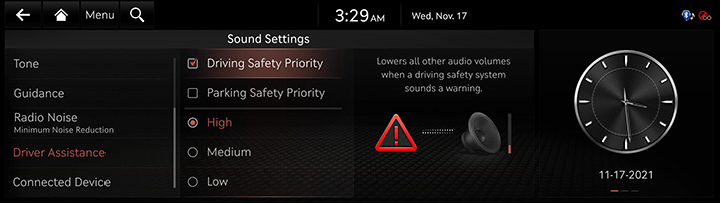
- Select a desired item.
Connected Device
Sets the sound for Android Auto or Apple CarPlay.
- On the sound settings screen, press [Connected Device].
|
|
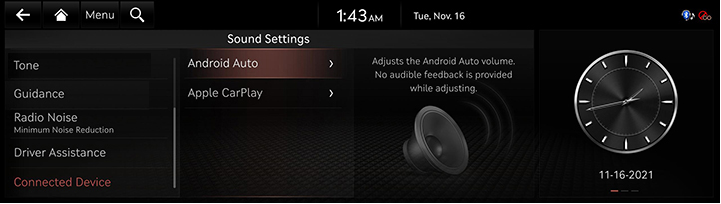
- Press the desired item.